
Recharge - Editing the Language in the purchase page
The modal, or popup, that opens when your customers decide to purchase a subscription as a gift is your primary way of communicating with them. Here's how it looks like by default:
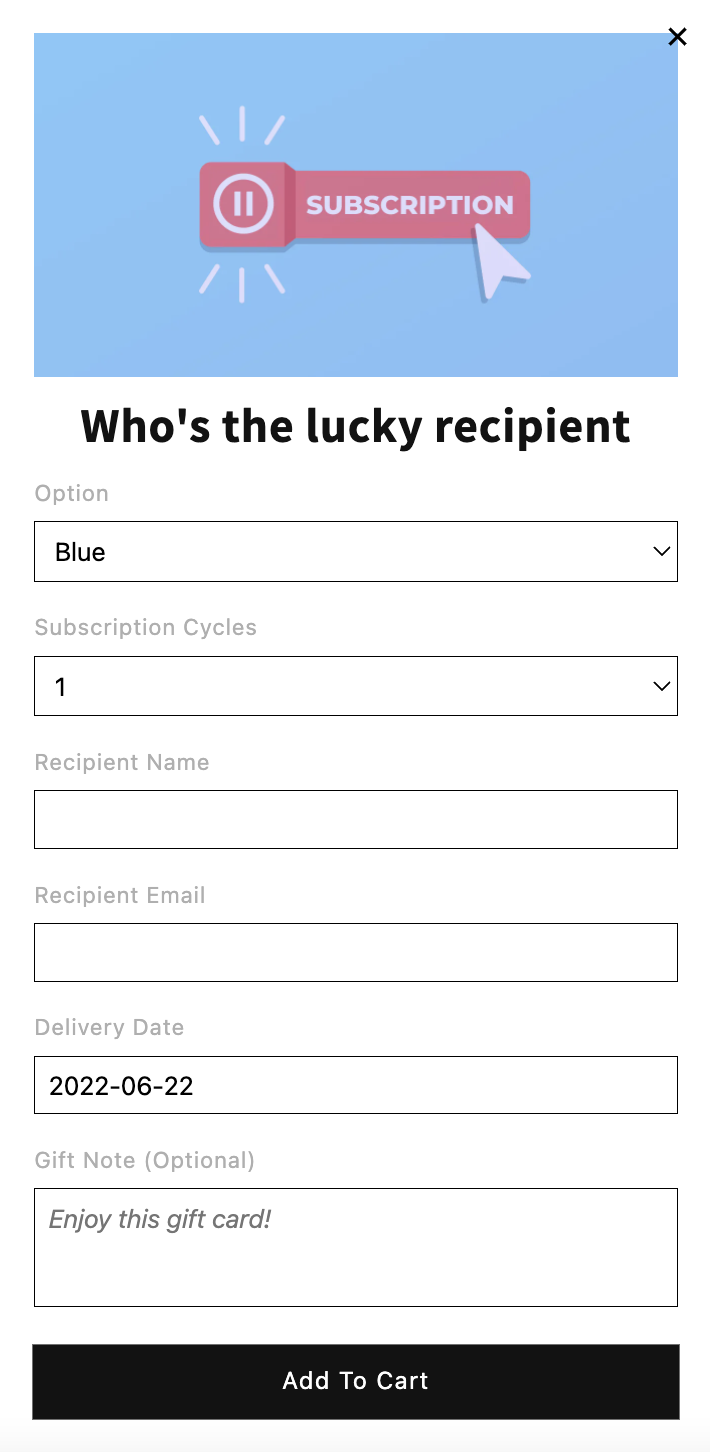
In the Govalo app, you can edit the verbiage in our modal to better adjust it to your business as needed. You can edit it as follows:
- In the Govalo app, go to Integrations > Configure Recharge > Configure email template.
- In the next screen, edit the text in each field as needed:
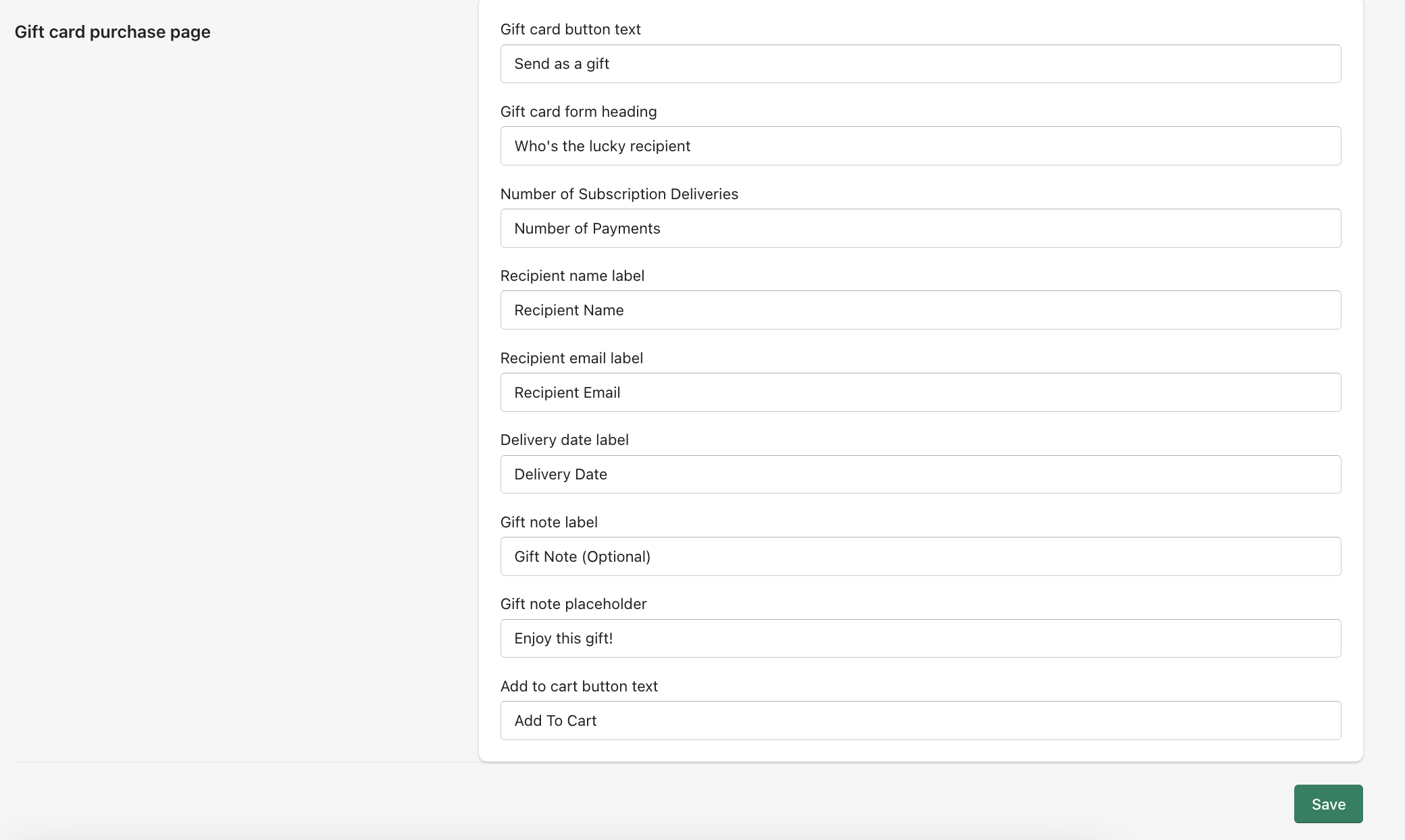
- Make sure to click Save when you're done editing.
Updated on: 29/06/2026
Thank you!