
Setting up Govalo
Welcome to Govalo! You have decided to take your digital gifting offering to the next level, so follow the steps outlined below for an initial setup of a gift card through our app.
- While logged in your Shopify store, get the Govalo app from https://apps.shopify.com/govalo
- Click Install app to accept the permissions and get Govalo installed:
- Read the features included in each plan, and select the one that better suits your needs. Every plan comes with a 7-day trial period, so you won't be charged during that time:
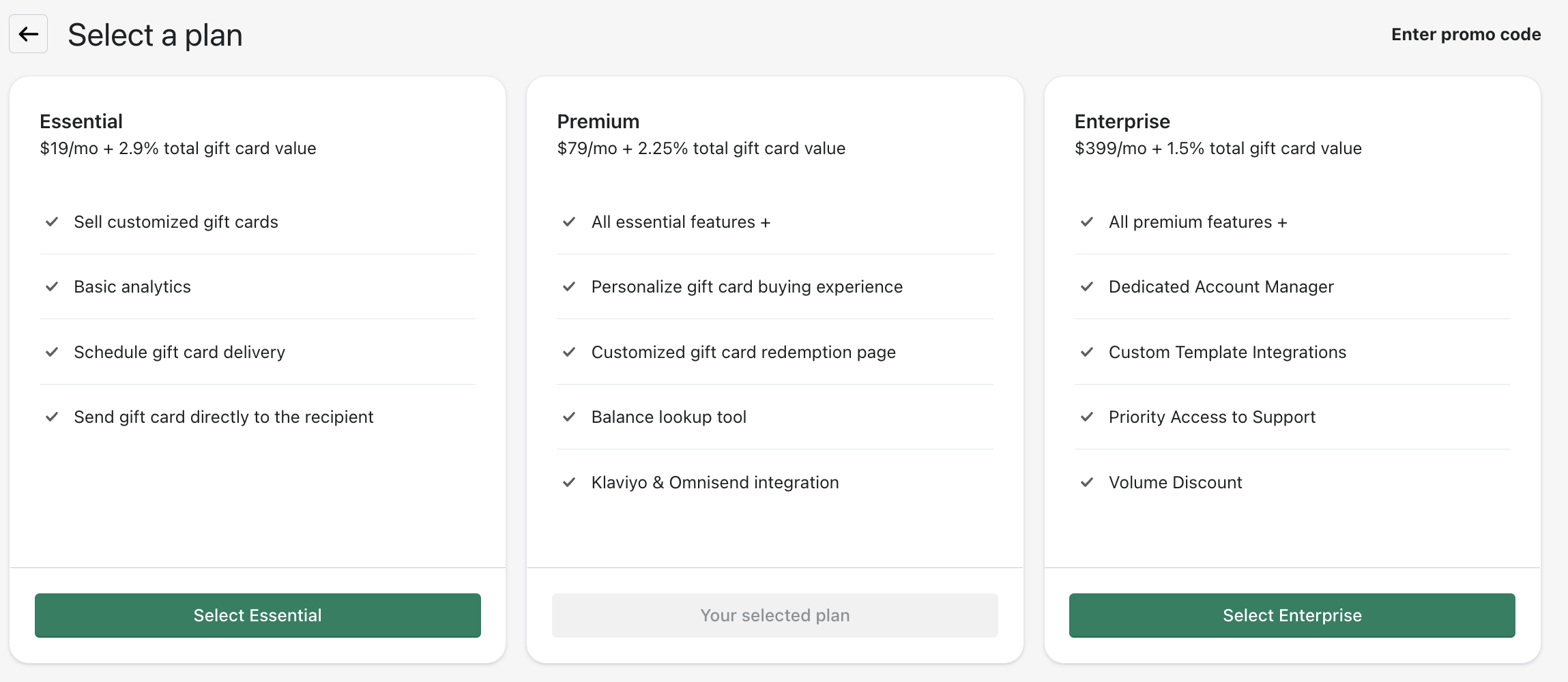
You can read further about Govalo's pricing at: https://support.govalo.com/faqs/pricing/how-much-does-govalo-cost
- In the next screen, add your billing details and click Approve.
- Next you'll start setting up your first gift card. Start by selecting one of the images offered by Govalo, or upload your own custom image:
- In the next step, set your gift card title and description as you wish — you can edit this later at any time.
- Moving on, set the values you wish to offer for your gift card. You can add any values as you want, as well as remove the ones that come pre-filled by Govalo. Continue to the next step once you've set your gift card values - you can also edit this later as needed.
- Govalo will create your gift card, after which you'll reach the final step
- Before you finish setting up Govalo, make sure our app theme extension is enabled. For this, on your Shopify store, navigate into Online Store > Themes, and click Customize on your active theme. After this, navigate into Theme settings > App embeds, and make sure to toggle Govalo on, then Save your settings. You may refer to the images below for a visual of these steps:
- Back to Govalo's onboarding screen, click Continue to final step - you'll be taken to a list with some additional details about Govalo, after which you can click Let's go! to be taken to the app.
<aside><p style="text-align: left;">If you integrate Govalo with Recharge or Bold Subscriptions later on, <strong>do not</strong> add gift card products created through Govalo to these apps, since gift cards are not meant to offer a subscription option. The integration with Recharge/Bold Subscriptions allows you to add an option to your subscription products so customers can also purchase them as a gift. You can read further about how this works at <a target="_blank" rel="noopener noreferrer" class="tiptap-link" href="/getting-started-with-subscription-gifts">Getting started with Subscription Gifts</a>.</p></aside>
Updated on: 29/06/2026
Thank you!