
How to resend a gift card email
Sometimes you may need to re-send a gift card email, either because the recipient didn't receive it the first time, lost it, or the buyer misspelled the recipient's email, so you have to edit it and re-send the email.
Below you'll find steps for how to resend it for gift cards, store credit, and subscription gifts:
In this article
- * *
Resend a Gift Card or Store Credit
<aside><p><strong>Note:</strong> the information below also applies to Store Credit - in this case, use the <strong>Store Credit</strong> section in the Govalo app.</p></aside>
- In the Govalo app, go to the Gift cards dashboard, then locate the gift card you wish to resend and access its details page:

- If you need to adjust the recipient's email, click Edit, adjust the email address, then Save it. Otherwise, skip to the next step:
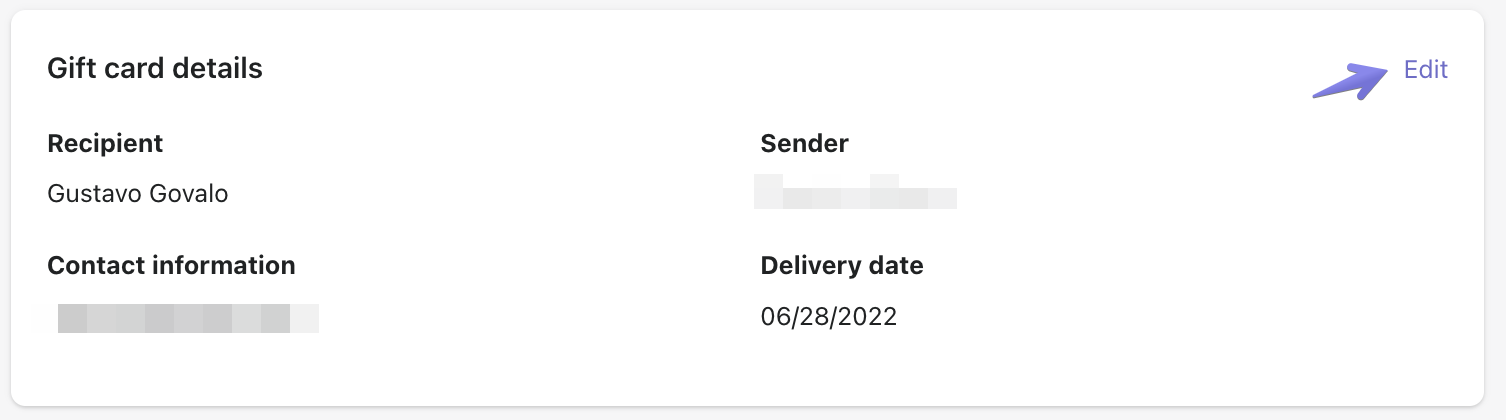
- Click on Actions, then Resend email. Govalo will resend the email right away, and you'll see a new entry for it in the Timeline:

- * *
Resend a Subscription Gift
- In the Govalo app, go to Integrations, then click Configure next to the subscription app integration you have (Recharge or Bold Subscriptions):
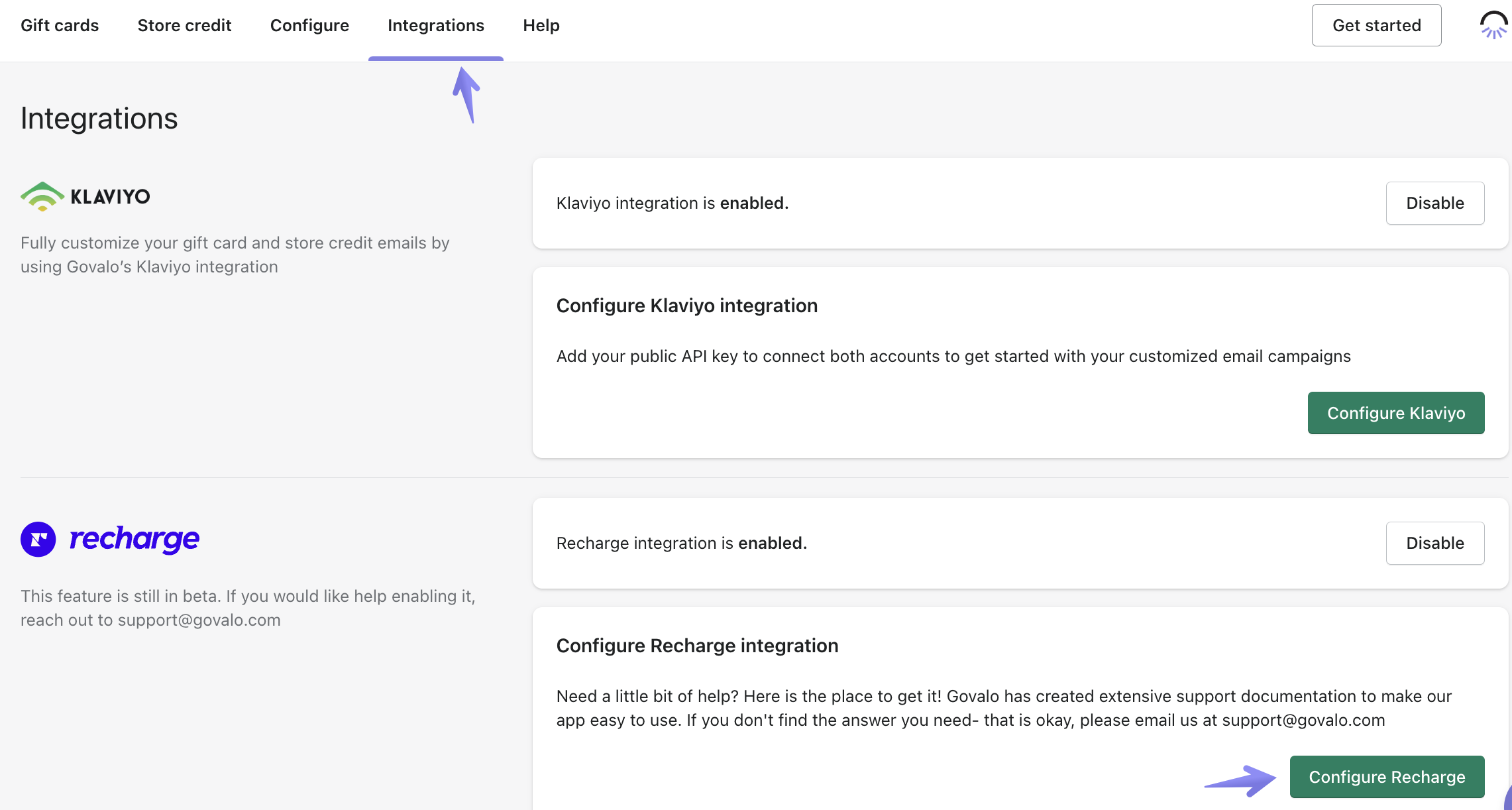
- Scroll down to the list of Active gifted subscriptions, locate the subscription gift you wish to resend, and click the link under Order info to access the gift's details page:

- If you need to adjust the recipient's email, click Edit next to the Gifted subscription details. Otherwise, skip to step 5:
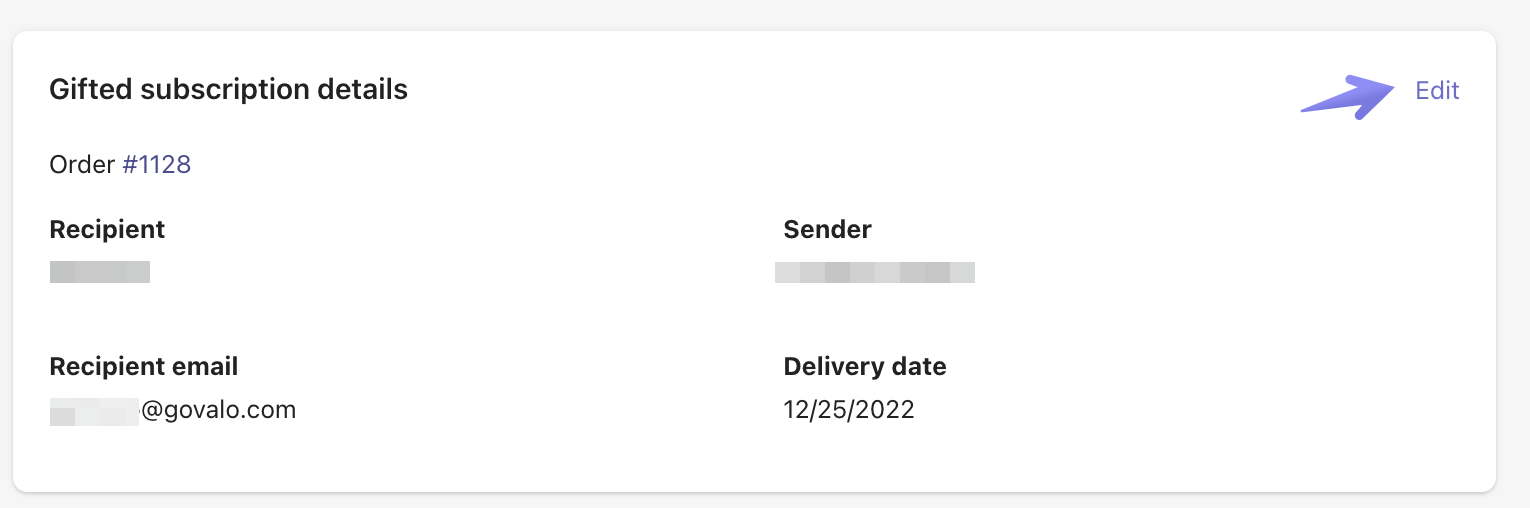
- Edit the email address, then click Save:

- Finally, click on Actions > Resend email to have the subscription gift sent to the new email address:

<aside><p><strong>Note:</strong> it's not possible to edit the recipient's email on subscription gifts that have been already redeemed.</p></aside>
Updated on: 29/06/2026
Thank you!